Shipments
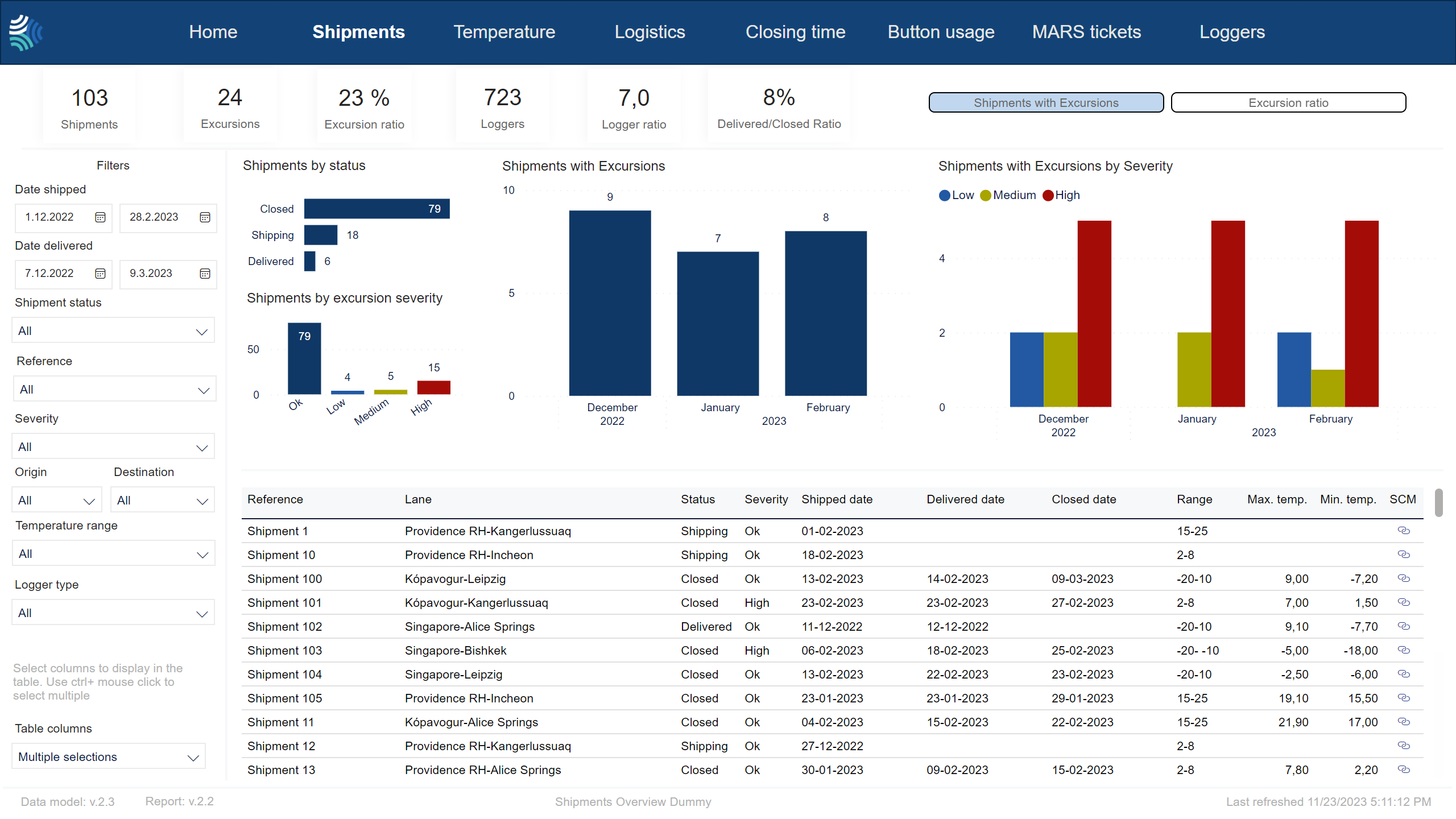
The Shipments page contains details about selected shipments.
Note
Shipments with multiple excursions are only counted once in each graph. Only the highest severity excursion is counted.
Shipment KPIs

Key performance indicators for selected shipments.
Item | Description |
|---|---|
Shipments | |
Excursions | |
Excursion ratio | |
Loggers | |
Logger ratio | |
Delivered/closed ratio | Ratio of shipments that were delivered vs closed. |
Note
Not all customers have the same filters. You may not see all of the following filters, and you may have filters not included below.
Tip
For any filter, to clear it, click  .
.
You can use the filter to select shipments data to include in the report using the following criteria:
Item | Description |
|---|---|
Date shipped | Date range for the date shipment was started, in Type a date, or click
|
Date delivered | Date range for the date shipment was delivered, in Type a date, or click
|
Reference | Reference to unique identifier of shipment in customer's system. Click to select, or press CTRL and click to select more than one from the list. |
Severity | Severity of excursion. Click to select, or press CTRL and click to select more than one of the following: |
Status | Current status of shipment. Click to select, or press CTRL and click to select more than one of the following: |
Origin | Origin of shipment. Click to select, or press CTRL and click to select more than one from the list. |
Destination | Destination of shipment. Click to select, or press CTRL and click to select more than one from the list. |
Temperature range/ Stowage condition | Temperature range to filter for. Click to select, or press CTRL and click to select more than one from the list. |
Transportation mode | Transportation mode. Click to select, or press CTRL and click to select more than one from the list. Options include:
|
Carrier | Name of carrier. |
Logger type | Type of device. Click to select, or press CTRL and click to select more than one from the list. |

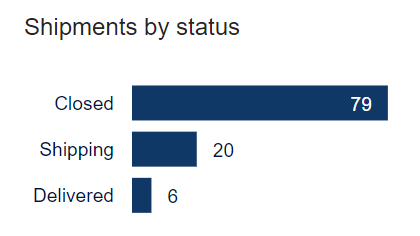
Number of selected shipments, by shipping status:
Closed
Shipping
Delivered
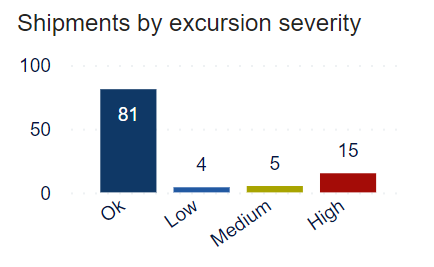
Number of selected shipments, by severity of excursion:
Ok
Low
Medium
High
Note
Shipments with multiple excursions are only counted once: only the highest severity excursion is counted.
Note
You can hover over graphs to see details in a pop-up, or click a bar to filter the rest of the page for that parameter.
Shipments with excursions | Excursion ratio |
|---|---|
To see Shipments with excursions, in the Excursion type sub-tab, click Shipments with excursions.  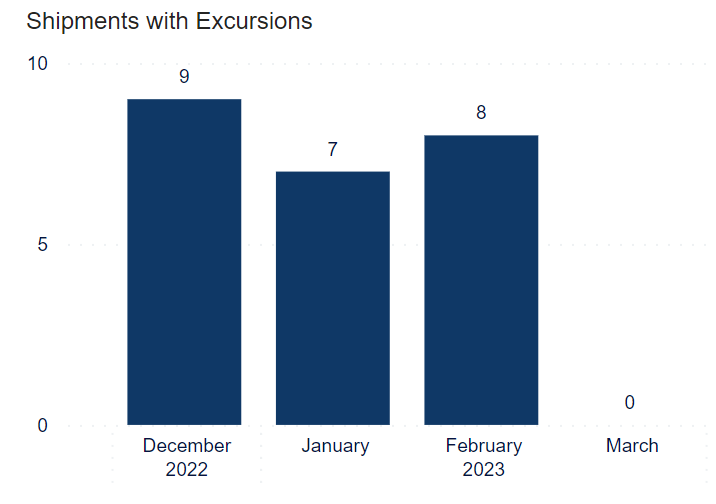 Number of shipments with excursions, by month. | To see Excursion ratio, in the Excursion type sub-tab, click Excursion ratio.  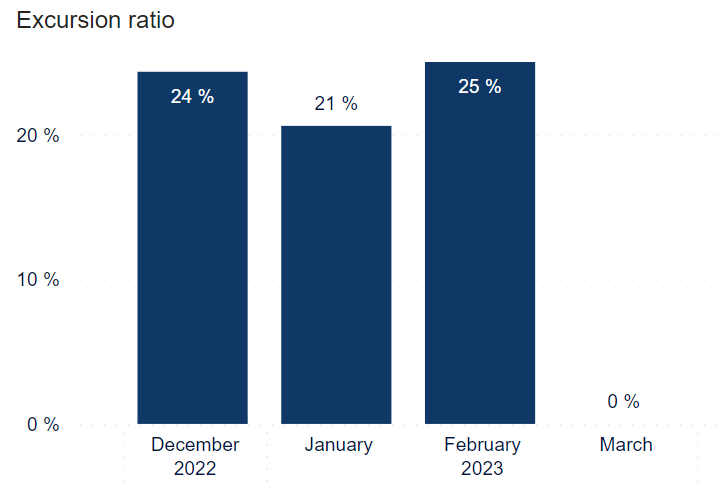 Ratio of shipments with excursions as a percentage of all shipments, by month. |
Note
You can hover over the graphs to see details in a pop-up, or click a bar to filter the rest of the page for that parameter.
Shipments with excursions by severity | Excursion ratio by severity |
|---|---|
To see Shipments with excursions by severity, in the Excursion type sub-tab, click Shipments with excursions. 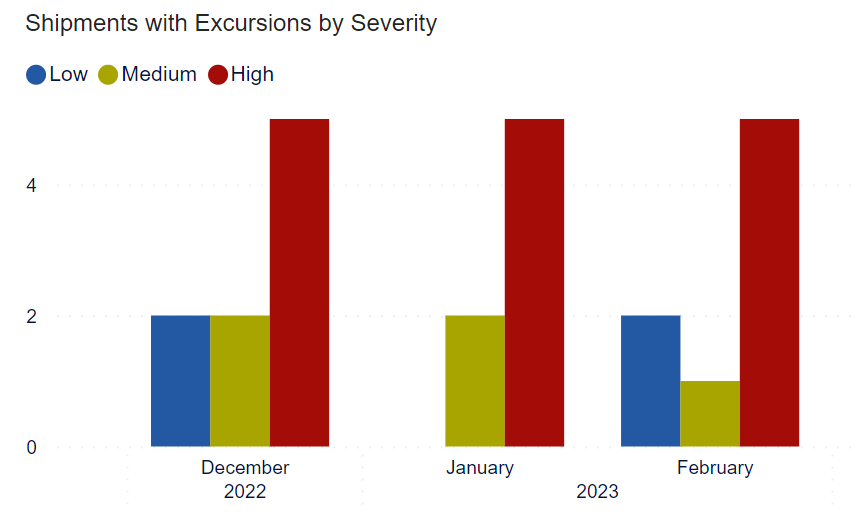 Number of shipments with excursions, by month, year and severity. | To see Excursion ratio by severity, in the Excursion type sub-tab, click Excursion ratio. 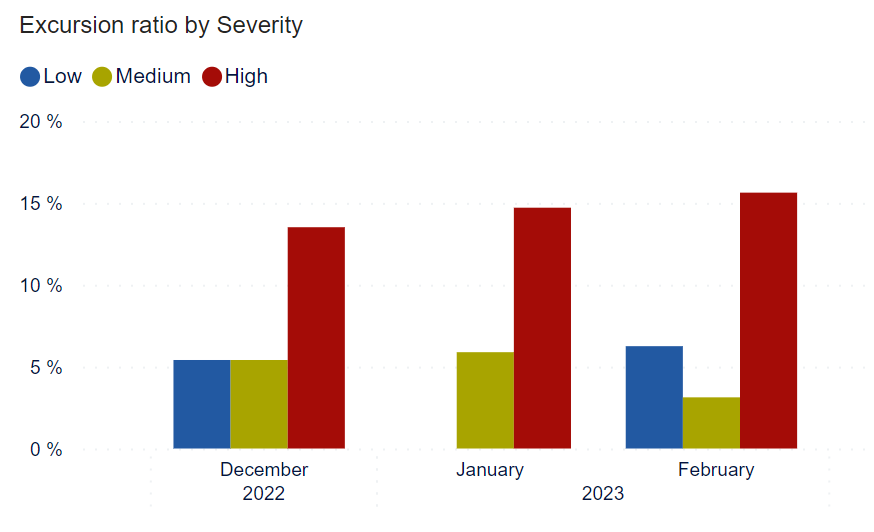 Ratio of shipments with excursions as a percentage of all shipments, by month, year and severity. |
Note
Shipments with multiple excursions are only counted once: only the highest severity excursion is counted.
Note
You can hover over graphs to see details in a pop-up, or click a bar to filter the rest of the page for that parameter.
Details about all selected shipments.
Tip
You can configure which columns to show in the Table columns drop-down. The default columns are indicated in bold below.
Ctrl-click to select multiple.
Item | Description |
|---|---|
Reference | Reference to unique identifier of shipment in customer's system. |
Lane | Lane of shipment. The origin-destination route of the shipment. |
Status | Status of shipment: |
Shipped date | Date shipment was shipped, in |
Delivered date | Date shipment was delivered, in Blank if shipment has not been delivered. |
Closed date | Date shipment was closed, in Blank if shipment has not been closed. |
Max. temp. | Maximum temperature logged during shipment. Blank if shipment is still shipping. |
Min. temp. | Minimum temperature logged during shipment. Blank if shipment is still shipping. |
SCM | Link to shipment in Controlant Platform (SCM). |
Shipment ID | Unique identifier of shipment. |
Country lane | The route between origin country and destination country of shipment. |
Origin | Origin location of shipment. |
Destination | Destination location of shipment. |
Severity | Highest severity of excursions logged on shipment. |
Temperature range | Temperature boundaries configured for shipment. |
Origin country | Origin country of shipment, in 2-letter ISO code format. |
Origin region | Region of the origin location of shipment. |
Destination country | Destination country of shipment, in 2-letter ISO code format. |
Destination region | Region of the destination location of shipment. |
Loggers | Number of loggers in shipment. |
Origin latitude | Latitude coordinate of the origin location of shipment. |
Origin longtitude | Longitude coordinate of the origin location of shipment. |
Destination latitude | Latitude coordinate of the destination location of shipment. |
Destination longtitude | Longitude coordinate of the destination location of shipment. |
Duration [d] | Duration of shipment in days. |
Duration [h] | Duration of shipment in hours. |
Closing time [d] | Time it takes from when a shipment is delivered until it is closed, in days. |
Closing time [h] | Time it takes from when a shipment is delivered until it is closed, in hours. |
Quality | Quality status of shipment.
|
Inspection status | Inspection status of shipment.
|
Business unit | Business unit associated with the shipment. |
Carrier | Name of carrier, as configured in custom properties in Supply Chain Monitoring. |
Mode (transportation mode) | Transportation mode used for the shipment. |
Description | Description entered for the shipment. |