Using the pairing module
The pairing module can be used to pair devices and add custom properties to shipments that have been created in the Controlant Platform (SCM).
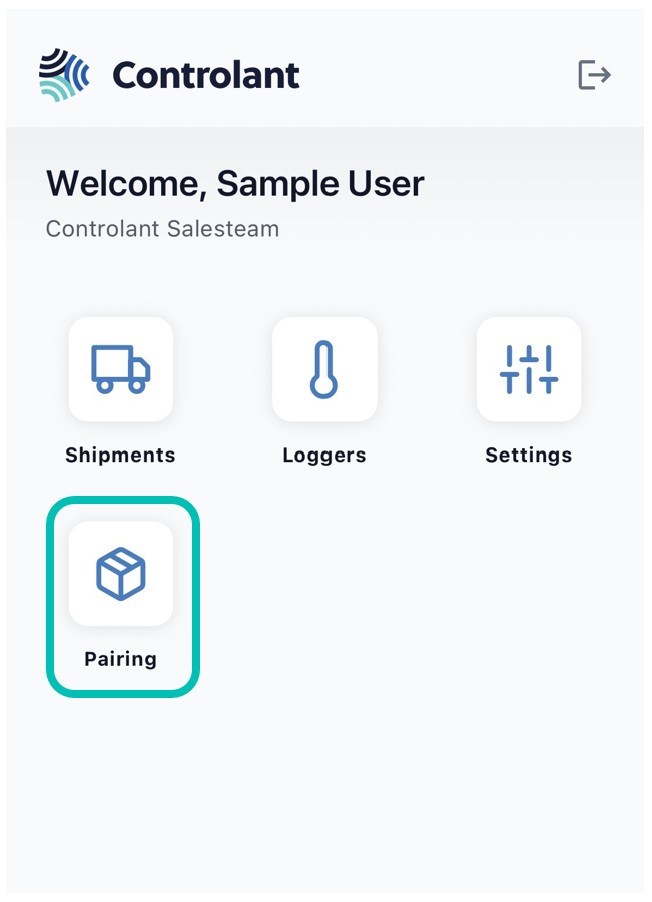
Select Pairing from the home screen to open the pairing module.
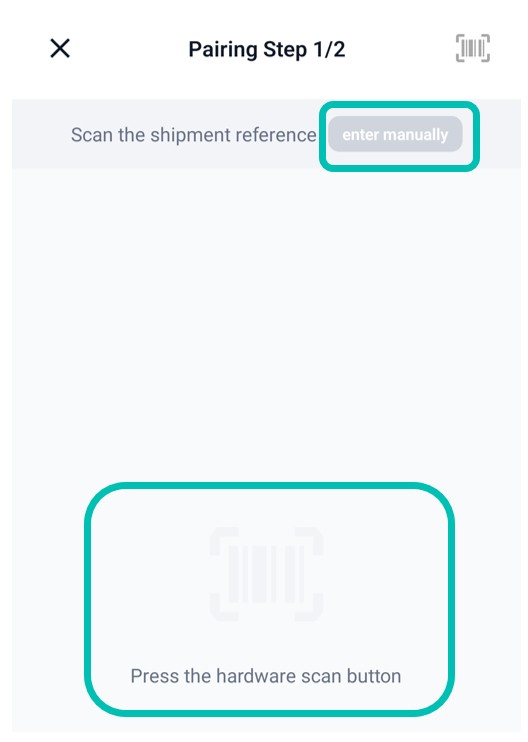
Add the shipment reference via one of the following methods:
Scan the shipment reference barcode.
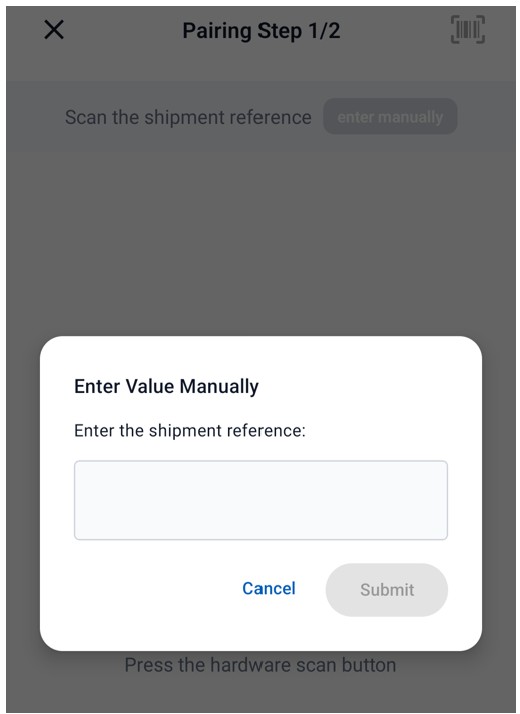
Alternatively, select enter manually to type in the shipment reference instead.
If entering manually, type in the shipment reference and click Submit.
Tip
If the shipment reference is not found:
Double check the spelling (if entering manually).
Use the shipments module to check that the shipment is still in Draft status. Only shipments in Draft status can have devices paired to them.
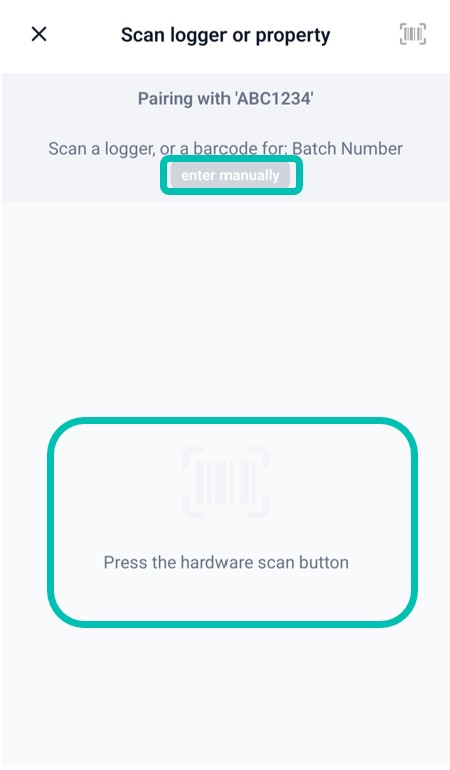
Add the device ID via one of the following methods:
Scan the device barcode.
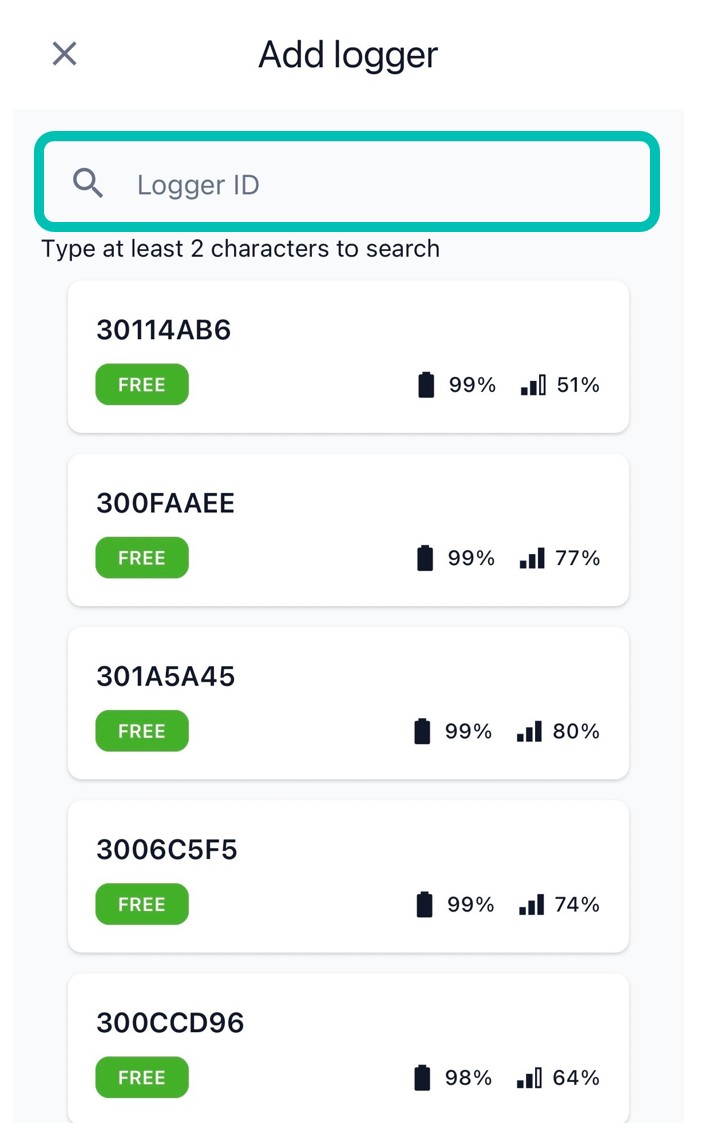
Alternatively, select enter manually to type in the device ID instead.
If entering manually, type in the device ID or select from list of available devices.
Note
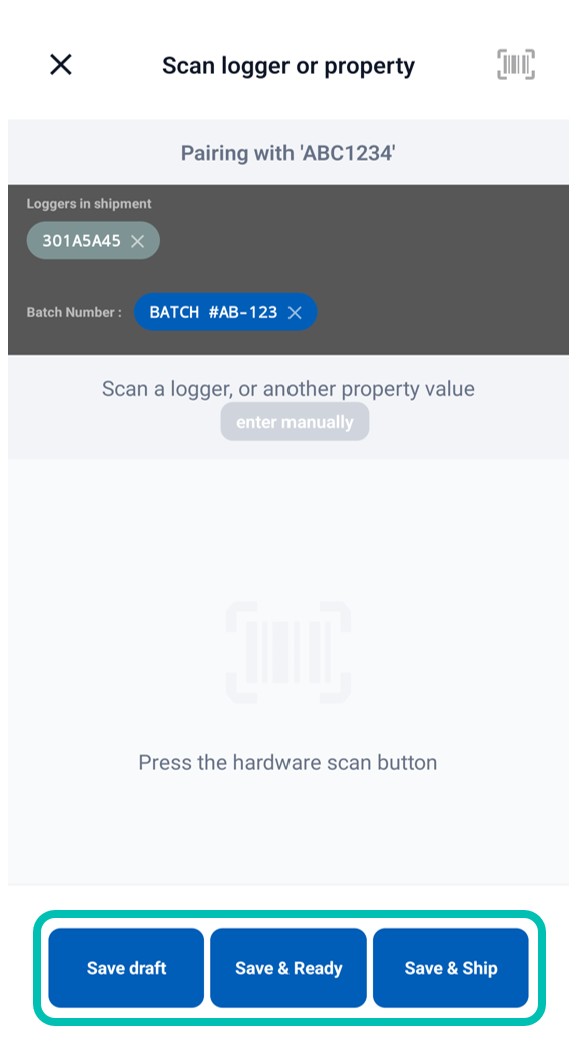
Multiple devices can be added to a single shipment using the app. To add more than one device, simply repeat step 3 until all devices have been paired.
Warning
If you scan a device that is already paired to another shipment, the app will briefly display the following error message: [Device ID]: Already in a shipment. Place that device aside and grab a different one.
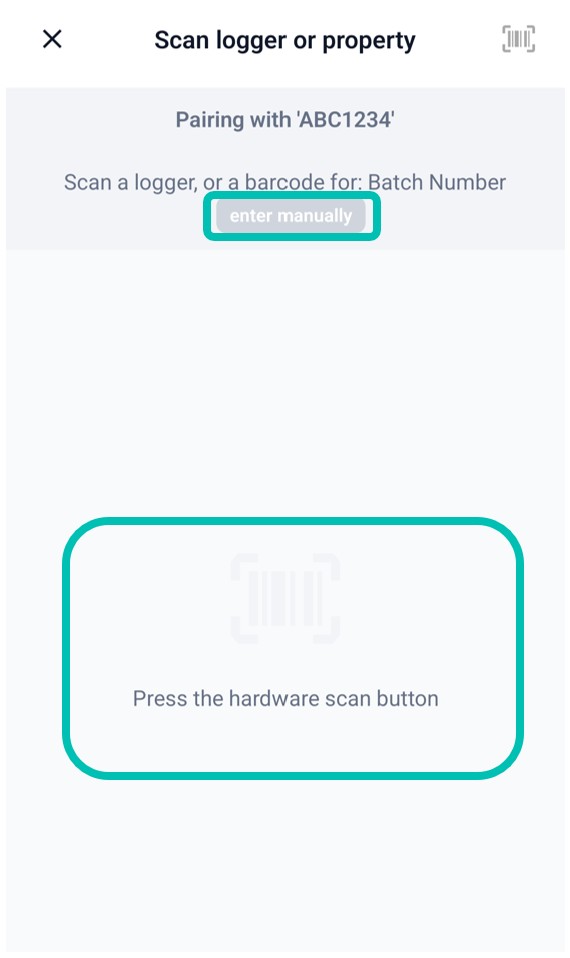
You may also add custom properties (e.g. "Batch Number") from the same screen via one of the following methods:
Scan the GS1 barcode.
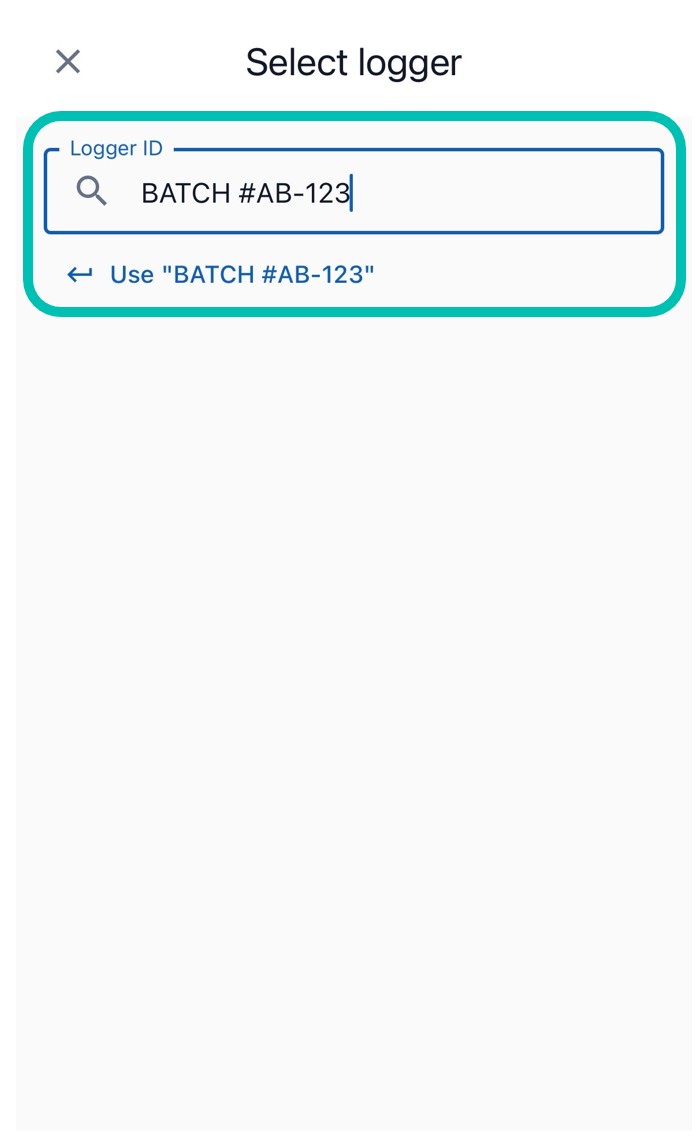
Alternatively, select enter manually to type in the custom property value instead.
If entering manually, type in the custom property value and select "Use [custom property name]."
Note
GS1 property scanning must first be enabled in app settings.
Select one of the following (options can be configured in app settings):
Save Draft: Saves shipment in "Draft" status.
Save & Ready: Saves shipment in "Ready to Ship" status.
Save & Ship: Saves and starts shipment straight away.