Editing shipments
Note
Only shipments in Draft status can be edited.
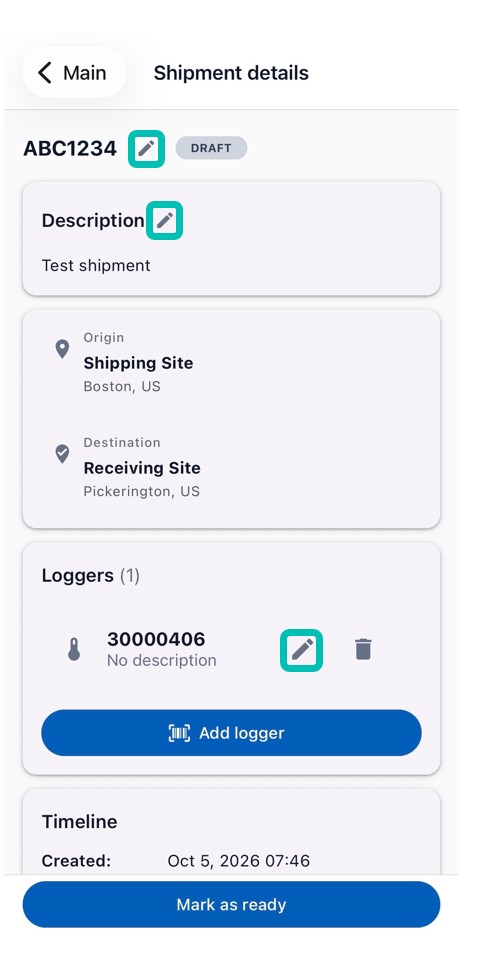
Users can update shipment information directly in the Shipment details page, which can be accessed by clicking on any shipment in the Shipments module. The following information can be edited:
Shipment reference
Shipment description
Devices paired to the shipment
Custom properties assigned to the shipment
How to edit shipments in the Controlant Mobile App
To edit a shipment:
Navigate to the Shipments module by selecting Shipments from the main menu.
Use the search box or scroll the list of Draft shipments to find the shipment you wish to edit.
Click on the shipment to open Shipment details.
Select the
 icon for the field you wish to edit.
 |
How to add, edit and remove devices
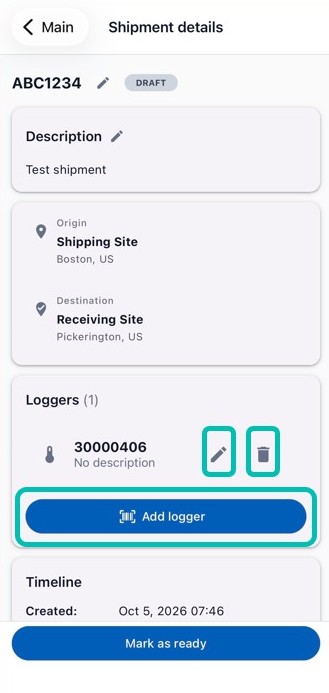
Pair additional devices to the shipment by selecting Add logger and following the steps to pair a device to a shipment.
Remove a device from the shipment by selecting the
 icon.
To edit an existing device, select the
 icon next to the device ID.
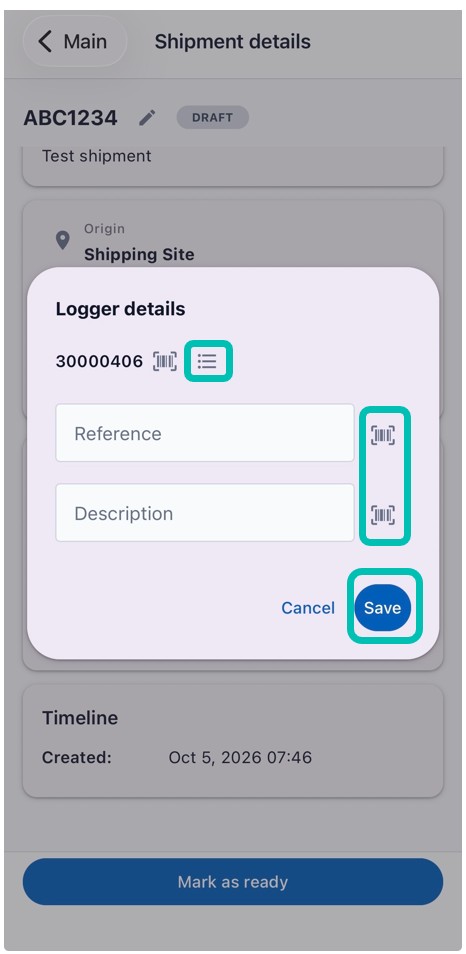
Add a device Reference and Description manually by typing in the text field or select the
 icon to scan a barcode.
Select the
 icon to replace the existing device with a different one.
Select Save.
 |
 |
How to add, edit and remove custom properties
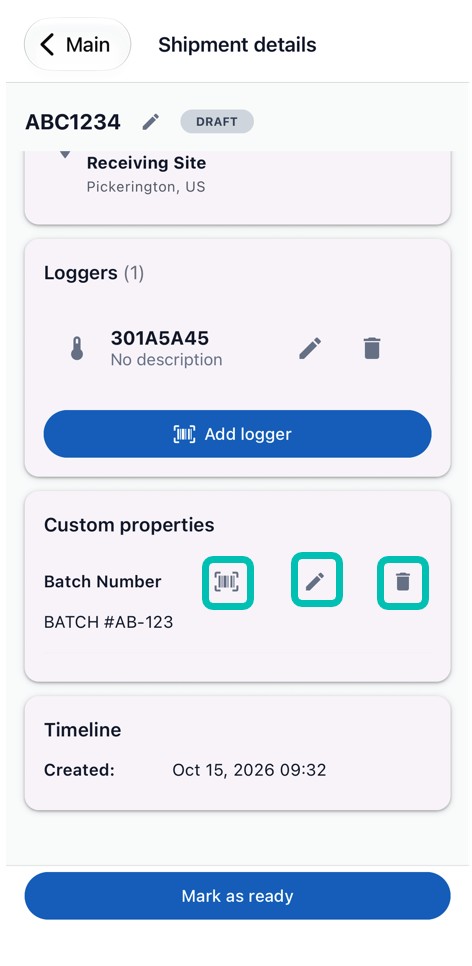
Add an additional custom property to the shipment by selecting the
icon and following the steps to pair a custom property to a shipment.Remove a custom property from the shipment by selecting the
icon.Select the
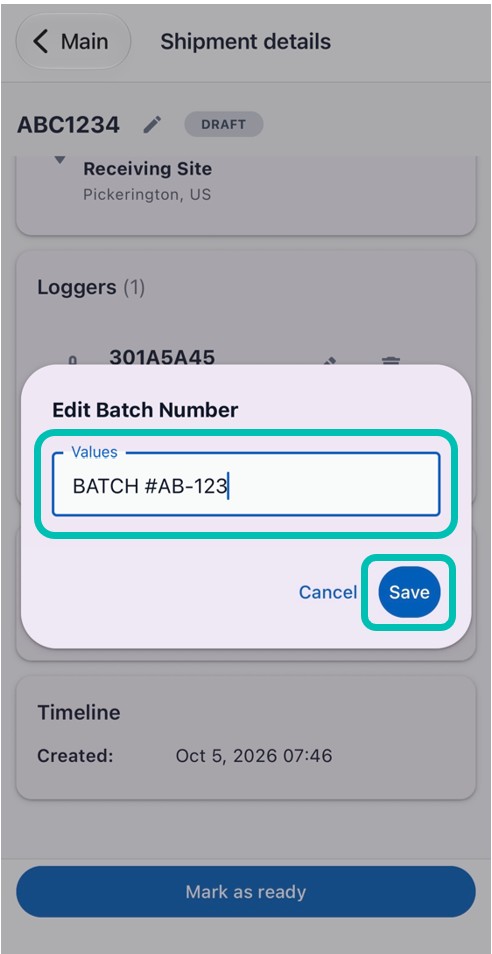
icon to edit an existing custom property.Use the text field to edit the property values.
Select Save.
 |
 |